
有時,您可能希望將電子郵件中的所有附件壓縮為 zip 文件直接在Outlook中。 在這種情況下,您可以使用本文介紹的VBA代碼來實現此功能。
默認情況下,Outlook有其附件大小限制– POP20,IMAP或其他基於Web的電子郵件帳戶為3 MB,而Exchange帳戶為10 MB。 因此,當附件的總大小超過限制時,您將得到相關的錯誤。 在這種情況下,將所有附件壓縮為 zip 文件。
但是,您可以看到,Outlook沒有提供這種直接功能。 也就是說,您需要先 zip 這些文件放在硬盤驅動器中,然後重新附加新創建的文件 zip 文件。 實際上,most 用戶希望他們可以在Outlook中直接實現它。 為響應此要求,下面將介紹如何使用VBA來實現它。
將所有附件壓縮為 Zip 文件
- 首先,啟動Outlook應用程序。
- 然後在Outlook主窗口中按“ Alt + F11”鍵按鈕。
- 接下來,在新的Outlook VBA編輯器窗口中,打開一個模塊。
- 隨後,將以下VBA代碼複製並粘貼到模塊中。
Sub ZipAttachments()
    Dim objMail As Outlook.MailItem
    Dim objAttachments As Outlook.attachments
    Dim objAttachment As Outlook.Attachment
    Dim objFileSystem As Object
    Dim objShell As Object
    Dim varTempFolder As Variant
    Dim varZipFile As Variant

    'Save the attachments to Temporary folder
    Set objFileSystem = CreateObject("Scripting.FileSystemObject")
    varTempFolder = objFileSystem.GetSpecialFolder(2).Path & "\Temp " & Format(Now, "dd-mm-yyyy- hh-mm-ss-")
    MkDir (varTempFolder)
    varTempFolder = varTempFolder & "\"

    Set objMail = Outlook.Application.ActiveInspector.CurrentItem
    Set objAttachments = objMail.attachments
    For Each objAttachment In objAttachments
        objAttachment.SaveAsFile (varTempFolder & objAttachment.FileName)
    Next

    'Create a new zip file
    varZipFile = InputBox("Specify a name for the new zip file", "Name Zip File", objMail.Subject)
    varZipFile = objFileSystem.GetSpecialFolder(2).Path & "\" & varZipFile & ".zip"
    Open varZipFile For Output As #1
    Print #1, Chr$(80) & Chr$(75) & Chr$(5) & Chr$(6) & String(18, 0)
    Close #1

    'Copy all the saved attachments to the new zip file
     Set objShell = CreateObject("Shell.Application")
     objShell.NameSpace(varZipFile).CopyHere objShell.NameSpace(varTempFolder).Items

     'Keep macro running until Compressing is done
     On Error Resume Next
     Do Until objShell.NameSpace(varZipFile).Items.Count = objShell.NameSpace(varTempFolder).Items.Count
        Application.Wait (Now + TimeValue("0:00:01"))
     Loop
     On Error GoTo 0

     'Delete all the attachments
     Set objAttachments = objMail.attachments
     While objAttachments.Count > 0
           objAttachments.Item(1).Delete
     Wend

     'Add the new zip file to the current email
     objMail.attachments.Add varZipFile

    'Prompt
    MsgBox ("Complete!")
End Sub
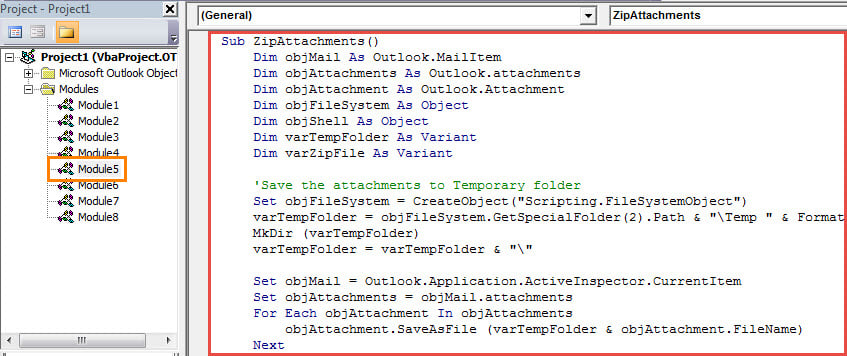
- 之後,您需要檢查Outlook宏設置以確保允許使用宏。
- 以後,您可以照常將新的VBA項目添加到消息窗口的快速訪問工具欄。
- 最終您可以嘗試一下。
- 首先,創建一個新電子郵件並附加幾個文件。 或者只是打開帶有許多附件的郵件。
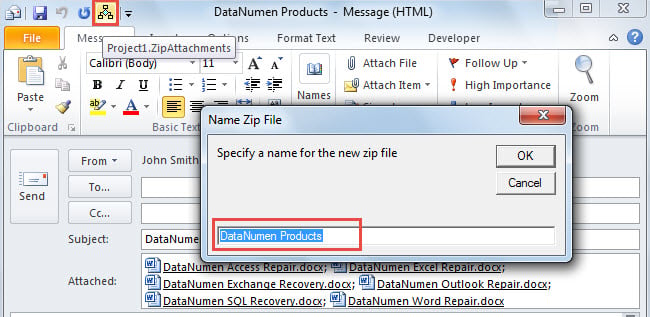
- 接下來,單擊快速訪問工具欄中的宏按鈕。
- 稍後,您需要為 zip 文件,然後單擊“確定”。 默認情況下,它將設置為與郵件主題相同。

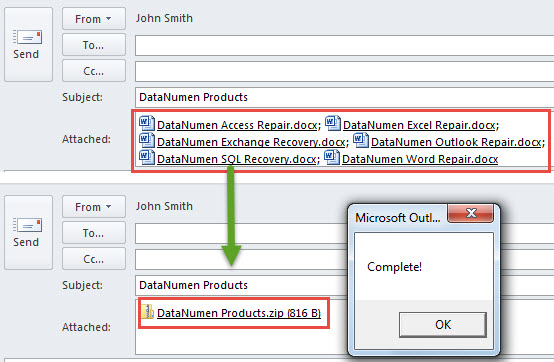
- 一次,所有附件將被壓縮為 zip 文件,如以下屏幕截圖所示:

Unzip 這個。Zip 直接在Outlook中的附件
您將不可避免地收到帶有“。”的任何附件。zip”文件擴展名。 在這種情況下,您可能需要直接取消zip 此類文件可從Outlook中獲取,而不必在本地驅動器上進行保存和解壓縮。 即使Outlook沒有這種本機功能,您仍然可以使用VBA來獲得它。 有關更多詳細信息,您可以參考另一篇文章–如何取消zip 這個。Zip 通過VBA直接在Outlook中附件“。
作者簡介:
Shirley Zhang是的數據恢復專家 DataNumen,Inc.是數據恢復技術的全球領導者,包括 SQL修復 和Outlook修復軟件產品。 欲了解更多信息,請訪問 萬維網。datanumen.COM